 Deskstar
Set up SLA policies
Set response and resolution targets, choose which dockets they apply to, and see how Deskstar picks a policy.
An SLA policy sets how quickly your team commits to respond to customers and to resolve their dockets. Deskstar applies the right policy to every docket automatically, starts the clocks, and warns you before a deadline is missed. Setting up your first policy takes about ten minutes.
What an SLA policy tracks#
Every policy sets a target for three things:
- First response: how long a new docket can wait for its first reply from your team.
- Next response: how long a customer can wait for a reply after they write again. This restarts every time they send a new message.
- Resolution: how long the docket can stay open before it's closed.
Each target is a number of minutes. You can also set a warning: a number of minutes before the deadline at which Deskstar flags that the docket is running out of time.
How Deskstar picks a policy#
You can have several policies. When a docket opens, Deskstar goes through your active policies and applies the best match:
- Each policy can have conditions, such as "the priority is high or critical".
- The policies that match the docket are compared by their priority number. The highest number wins.
- A policy with no conditions matches every docket. Mark one of these as the default and it catches anything the others don't.
Every workspace starts with a Default SLA Policy that applies to all dockets: 1 hour for first response, 4 hours for next response and 24 hours for resolution, all counted in business hours.
Go to Settings → SLAs to see your policies.
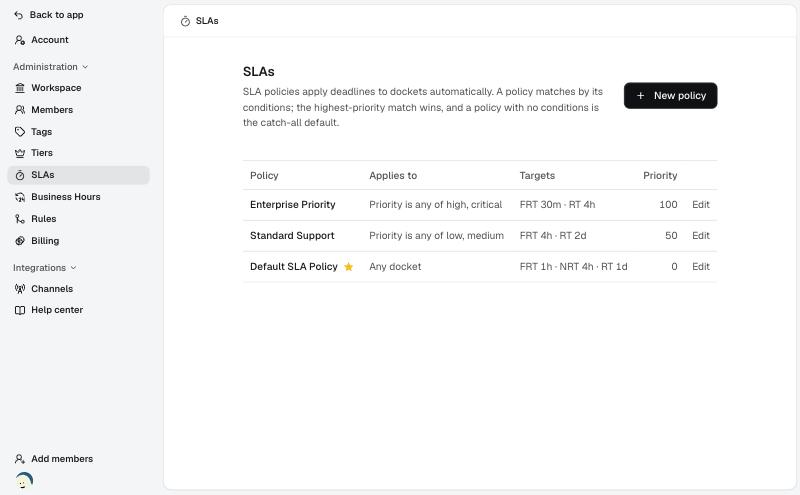
The list shows, for each policy, what it applies to, its targets and its priority. The star marks the default. In the targets column, FRT is first response, NRT is next response and RT is resolution.
Create a policy#
Click New policy.
-
Name it and choose a priority
Give the policy a name, such as "Priority support", and an optional description.
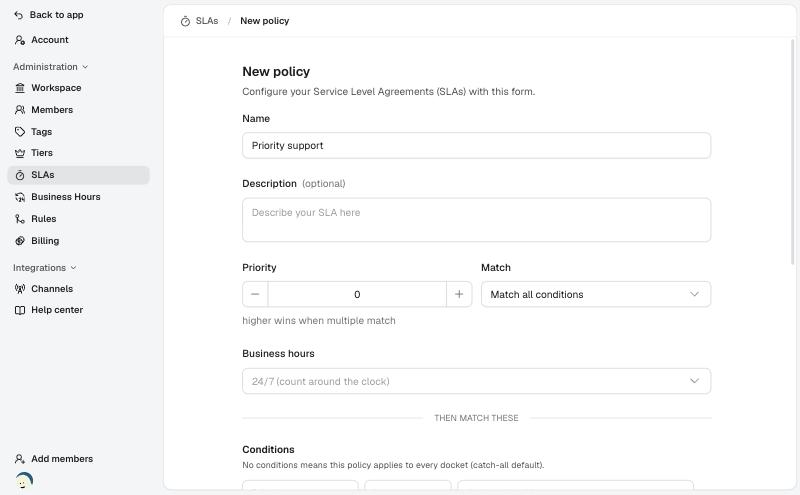
Name, priority, how conditions combine, and which business hours to use. Set the policy's priority. When more than one policy matches a docket, the one with the higher number wins. Leave gaps, for example 0, 50 and 100, so you can slot another policy in between later.
Choose Match all conditions if every condition must be true, or Match any condition if one is enough.
Under Business hours, choose the schedule this policy's timers should follow, or leave it on 24/7 to count around the clock.
-
Say which dockets it applies to
Under Conditions, click Add condition. Each condition has three parts: what to look at, how to compare it, and the values to look for.
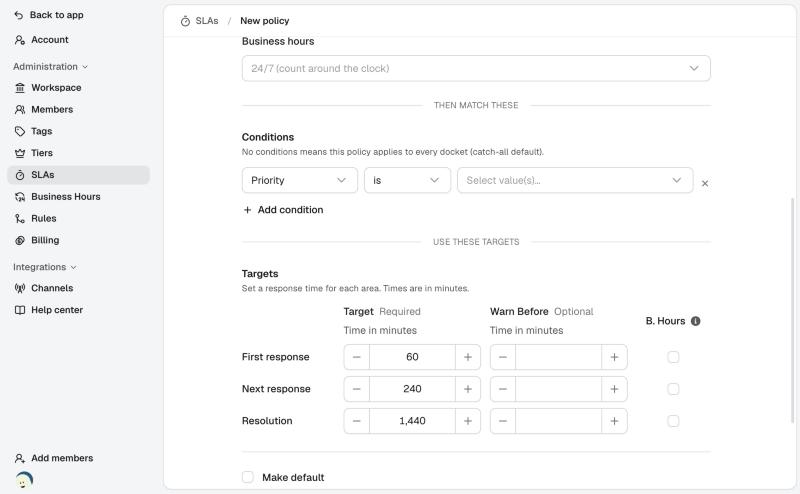
Conditions choose the dockets. Targets set the times. You can look at:
- Priority: the docket's priority, from low to critical
- Channel: where it came from, such as email, Slack, Telegram or chat
- Status: open, snoozed or closed
- Company tier: the tier of the customer's company, such as a VIP tier
The comparisons include is, is not, is any of, is none of and is set. For example, "Priority is any of high, critical" applies the policy to your urgent dockets, and "Company tier is VIP" applies it to your most important customers.
Leave the conditions empty to make a policy that applies to every docket.
-
Set the targets
Under Targets, set a time in minutes for each area. They start at 60, 240 and 1,440 minutes, which is 1 hour, 4 hours and 24 hours.
- Target: the deadline in minutes. This is required.
- Warn before: optional. How many minutes before the deadline Deskstar should warn you.
- B. Hours: tick this to count only business hours for this target. It uses the schedule you chose for the policy. If the policy has no schedule, ticking it has no effect.
You can mix them. A common choice is to count first response in business hours, so an overnight message isn't an instant breach, while resolution runs around the clock.
-
Choose the default and save
Tick Make default if this policy should catch every docket the others don't. Leave Active ticked to use the policy. An inactive policy is ignored but kept, so you can switch it back on later.
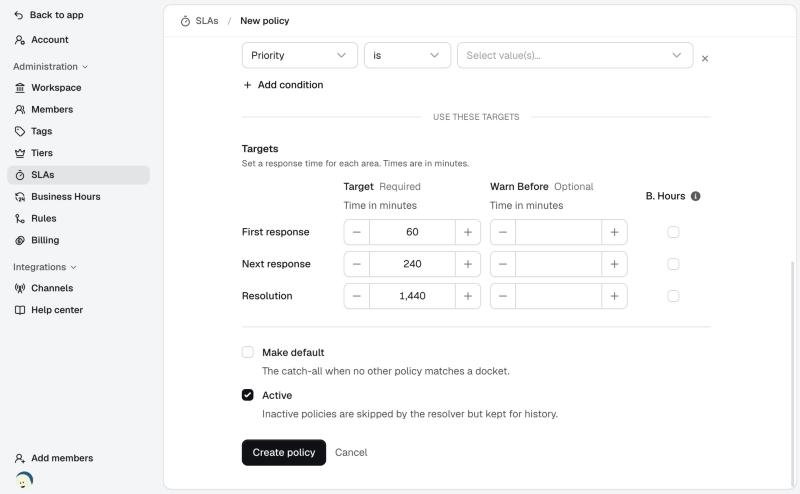
Make default, Active and Create policy. Click Create policy.
What happens to a docket#
Once a policy applies to a docket, Deskstar starts the clocks.
- First response stops the moment someone on your team sends the first reply.
- Next response starts when a customer writes again, and stops when your team replies.
- Resolution stops when the docket is closed as resolved.
- The clocks pause while a docket is waiting on the customer, and carry on when the customer replies or the status changes.
- If you reopen a docket, the clocks start again.
- Closing a docket as spam or ignored cancels its timers instead of counting a breach.
Each timer ends as met or breached. The first-response timer shows next to the docket in the list, so your team can see which dockets are running out of time. Met and breached results feed your Insights reports.
Tips for a good setup#
- Start with the default policy. Adjust its times to what you can really deliver before adding more policies.
- Add a policy for your most important dockets. For example, a stricter policy for "Priority is any of high, critical", with a higher priority number than your default.
- Give each active policy its own priority number. If two active policies share a number and both match, Deskstar picks the older one and shows a warning on the SLAs page. Give them different numbers so you control which wins.
- Use customer tiers for important accounts. Create the tier under
Settings → Tiers, put the right companies on it, and match it with a "Company tier" condition.
Troubleshooting#
A docket has the wrong policy
Deskstar applies the matching policy with the highest priority number. Check that your more specific policy has a higher number than the default, and that its conditions match the docket. If two active policies share a number, a warning appears on the SLAs page.
My timers count overnight and at weekends
The target isn't set to follow business hours. Check that the policy has a Business hours schedule chosen, and that B. Hours is ticked for that target.
I changed a policy but old dockets didn't change
That's intended. Open dockets keep the targets they were given when the policy was attached, so changing a policy never moves a deadline halfway through. New dockets use the new targets.
I can't create or edit policies
Only Owners and Admins can change SLA policies. Ask one of them to make the change, or to change your role.