 Deskstar
Set up the Slack Channel
Install the Deskstar app in Slack, choose which channels it watches, and decide whether conversations become dockets from an emoji or automatically.
Connect your Slack workspace so customer conversations in your shared channels become dockets your team can work from, and your replies go back into the same Slack thread. Setup takes about five minutes.
How it works#
You install the Deskstar app in your Slack workspace. The app joins the channels you use with customers and watches them. When a conversation should become a docket, Deskstar creates it and keeps it in step with the Slack thread: every later reply in the thread is added to the docket, and every reply your team sends from Deskstar is posted back into the thread.
Replies from Deskstar appear in Slack from the Deskstar app, not from the person who wrote them.
Set it up#
-
Connect your Slack workspace
Go to
Settings → Channels → Slackand click Authorize Deskstar.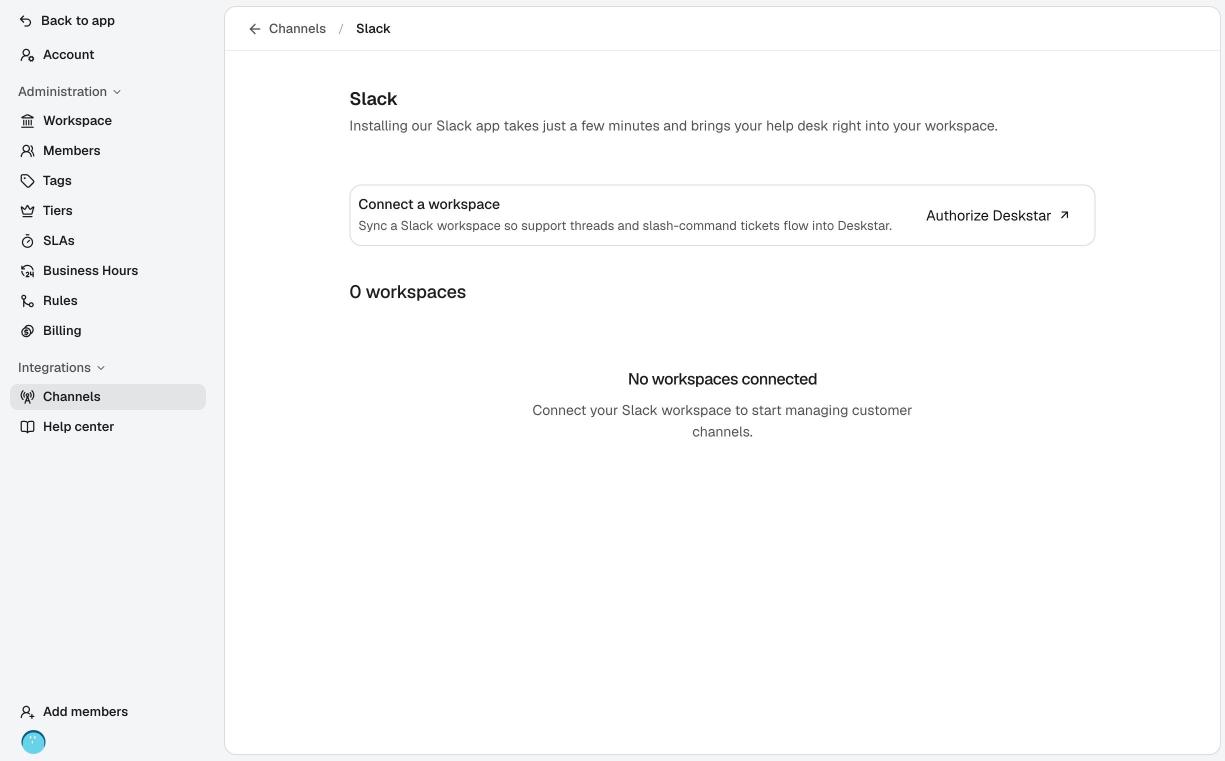
Settings → Channels → Slack, before anything is connected. Slack asks which workspace to add the app to and shows the permissions Deskstar needs. Choose your workspace and click Allow. You land back in Deskstar, where the workspace now appears in the list.
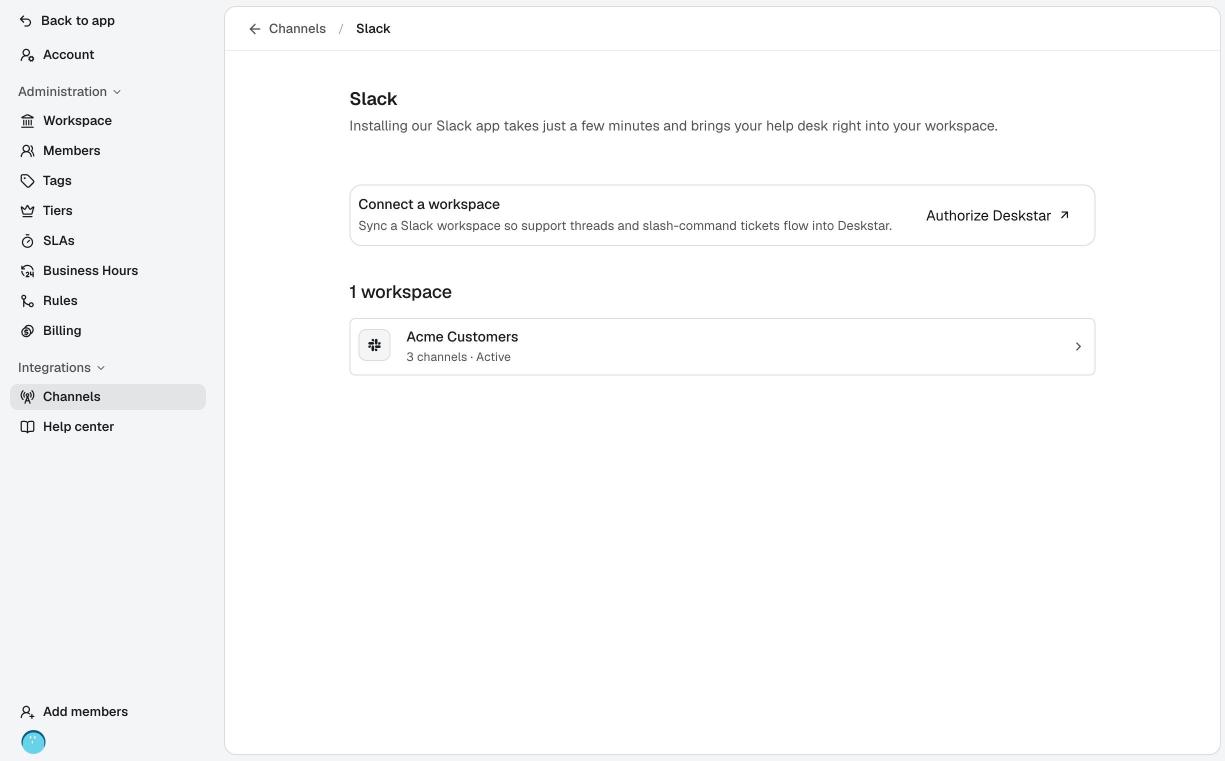
The connected workspace, with its channel count and status. -
Get the bot into your customer channels
Deskstar only reads channels the bot is a member of.
- Public channels: the bot joins automatically when a channel whose name starts with your prefix is created. The prefix is
ext-unless you change it, so a channel calledext-acmeis picked up straight away. To bring in channels that already exist, click Add the bot to existing matching public channels. - Private channels: Slack doesn't let apps add themselves to private channels. In the channel, type
/invite @Deskstar. It then appears in your channel list in Deskstar.
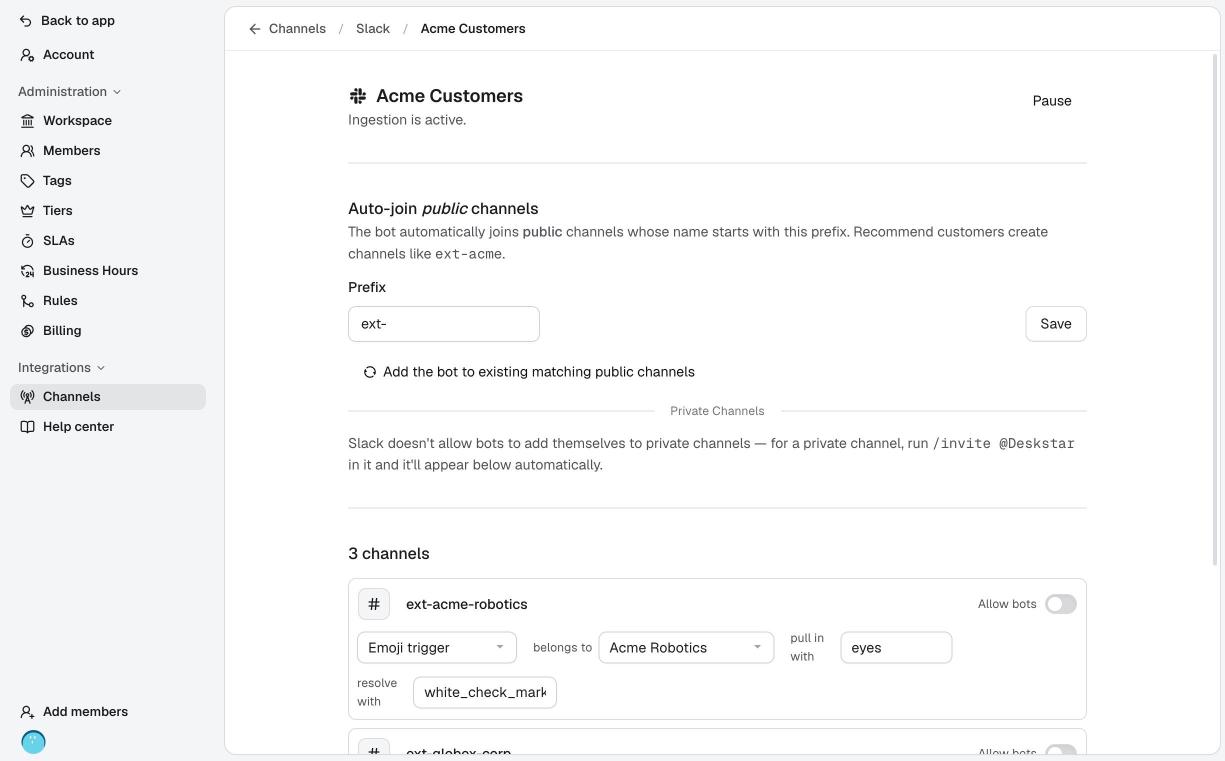
Open the workspace to set the prefix and see its channels. Each channel the bot joins shows up under Channels on this page.
- Public channels: the bot joins automatically when a channel whose name starts with your prefix is created. The prefix is
-
Choose how conversations become dockets
For each channel, pick a mode. This is the setting that matters most.
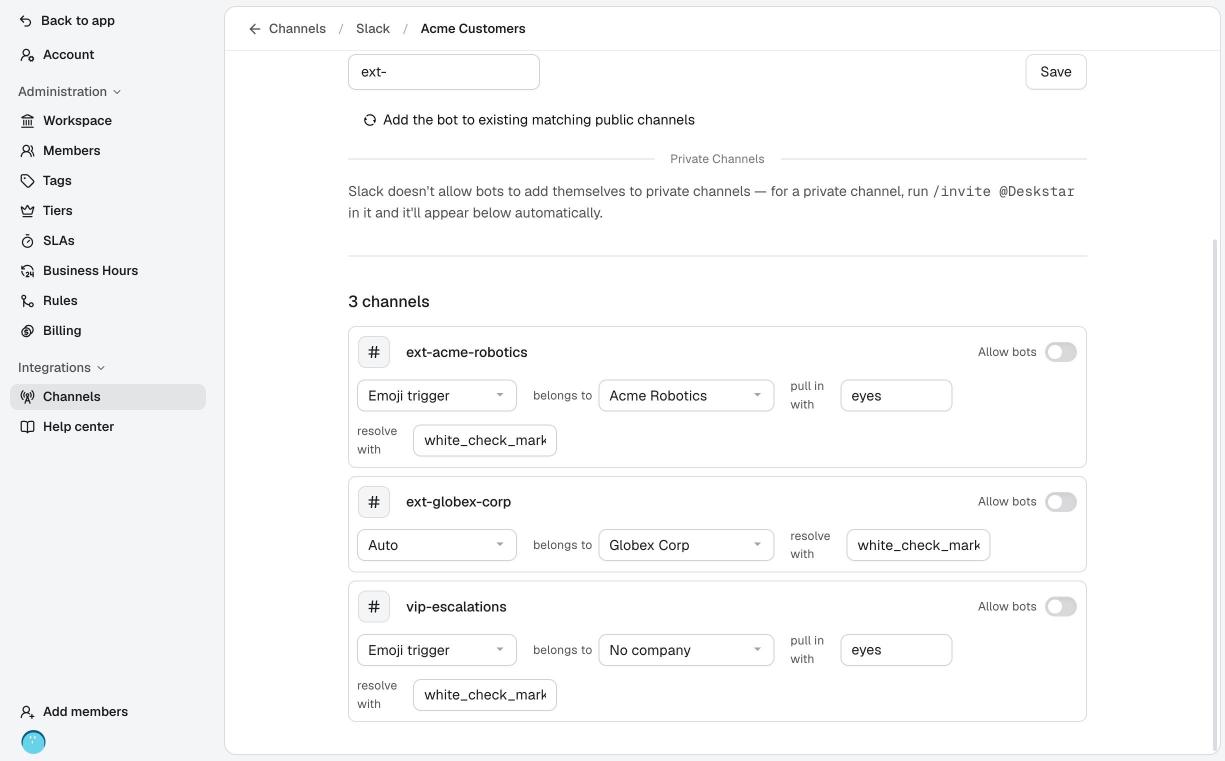
Each channel has its own mode, company link and emoji. - Emoji trigger (the default): nothing happens until one of your team reacts to a message with the pull in with emoji (
eyesunless you change it). Deskstar then pulls that whole thread in as a docket. Your team decides what becomes a docket, and ordinary chatter is ignored. - Auto: Deskstar opens dockets on its own as customers post. It uses AI to decide whether a message continues an existing docket or starts a new one.
Whichever mode you choose, once a thread has a docket, every later reply in that thread is added to it automatically.
- Emoji trigger (the default): nothing happens until one of your team reacts to a message with the pull in with emoji (
-
Make sure your team is recognised
Deskstar treats a person as one of your team when their Slack email address matches their email in Deskstar. Matched teammates can pull threads in with the emoji and resolve dockets with a reaction. Everyone else in the channel is treated as a customer.
If someone uses different emails in the two places, update one of them so they match.
What you can do from Slack#
- Pull a thread in (Emoji trigger mode): a teammate reacts to the first message of a thread with
eyes. - Resolve a docket: a teammate reacts to a message in the thread with the resolve with emoji,
white_check_markby default. Removing the reaction reopens the docket if it was closed. - Let customers open a ticket: anyone can type
/docketin a channel the bot is in. A short form asks for a title and a message. Deskstar then starts a thread with the ticket and replies with its reference. Customers can add screenshots and files as replies in that thread. - Reply: answer from the docket in Deskstar and your reply is posted in the thread.
Edits sync too. If a customer edits a message in Slack, the docket updates and shows it as edited. If they delete one, the docket keeps a placeholder reading "This message was deleted".
Use the emoji name without colons, as shown in Slack when you hover over an emoji, for example eyes rather than :eyes:.
Settings for each channel#
- Belongs to: link the channel to one of your companies. This lets broadcasts you send to that company's audience reach the channel.
- Allow bots: by default Deskstar ignores messages from other apps. Turn this on to ingest posts from alerting or monitoring bots. To accept only some of them, enter their app or bot IDs in the allowlist, separated by commas. Leave it blank to accept all of them. Deskstar's own bot is always excluded.
- Pull in with / resolve with: the emoji names described above.
Pause or resume#
Click Pause at the top of the workspace page to stop ingesting messages from that Slack workspace. Click Activate to start again.
Reconnect or update permissions#
Two badges can appear next to a workspace in the list:
- Reconnect required: Slack has revoked Deskstar's access, for example after the app was removed. Click Authorize Deskstar and approve again. Your channels and settings are kept.
- Update permissions: Deskstar now needs a permission this workspace hasn't granted. Open the workspace and click Update permissions. A Slack admin may need to approve it.
Troubleshooting#
Reacting with the emoji does nothing
Check three things. The channel is in Emoji trigger mode. The emoji name in pull in with matches the one you used. And your Slack email matches your Deskstar email, because a reaction from someone who isn't recognised as a teammate is ignored.
A channel isn't in the list
For a public channel, check its name starts with your prefix, then click Add the bot to existing matching public channels. For a private channel, run /invite @Deskstar inside it. Archived channels are not picked up.
Messages from another app are missing
Allow bots is off for that channel, or the app isn't on the allowlist. Turn it on and check the allowlist.
My reply didn't appear in Slack
The bot may have been removed from the channel, or the channel was archived. Add the bot back with /invite @Deskstar. Replies can only be posted into channels the bot is in.
Nothing is arriving at all
Check the workspace page says Ingestion is active. If it says paused, click Activate. Also check the workspace list for a Reconnect required badge.
The /docket command isn't available
The command is part of the Deskstar app. If it's missing, ask a Slack admin to confirm the app is installed and that you are in a channel the bot has joined.