 Deskstar
Set up the Telegram Channel
Connect your own Telegram bot so customer messages arrive as dockets. Create the bot, paste the token, enable it, and choose how groups are handled.
Connect your own Telegram bot so customer messages, in direct chats and in groups, arrive as dockets your team can work from. Setup takes about five minutes.
How it works#
You create a bot with Telegram's @BotFather and paste its token into Deskstar. Deskstar checks the token with Telegram, then registers a private webhook so Telegram pushes new messages to your workspace. Each message lands on a docket, either a new one or the one it belongs to.
The bot is your own, so access stays inside your workspace and you can revoke it at any time from @BotFather.
Set it up#
-
Create a bot in Telegram
Skip this step if you already have a bot you want to use.
- Open Telegram and search for @BotFather (look for the blue verified check).
- Send
/newbot. - Enter a name for the bot. This is the display name, for example
Acme Support. - Enter a username. It must be unique and end in
bot, for exampleacme_support_bot. - BotFather replies with your bot token. It looks like this:
123456789:AAH8vYYnaKYzYQ...s7c -
Paste the token into Deskstar
Go to
Settings → Channels → Telegram, paste the token under Enter your Telegram bot token, and click Connect bot.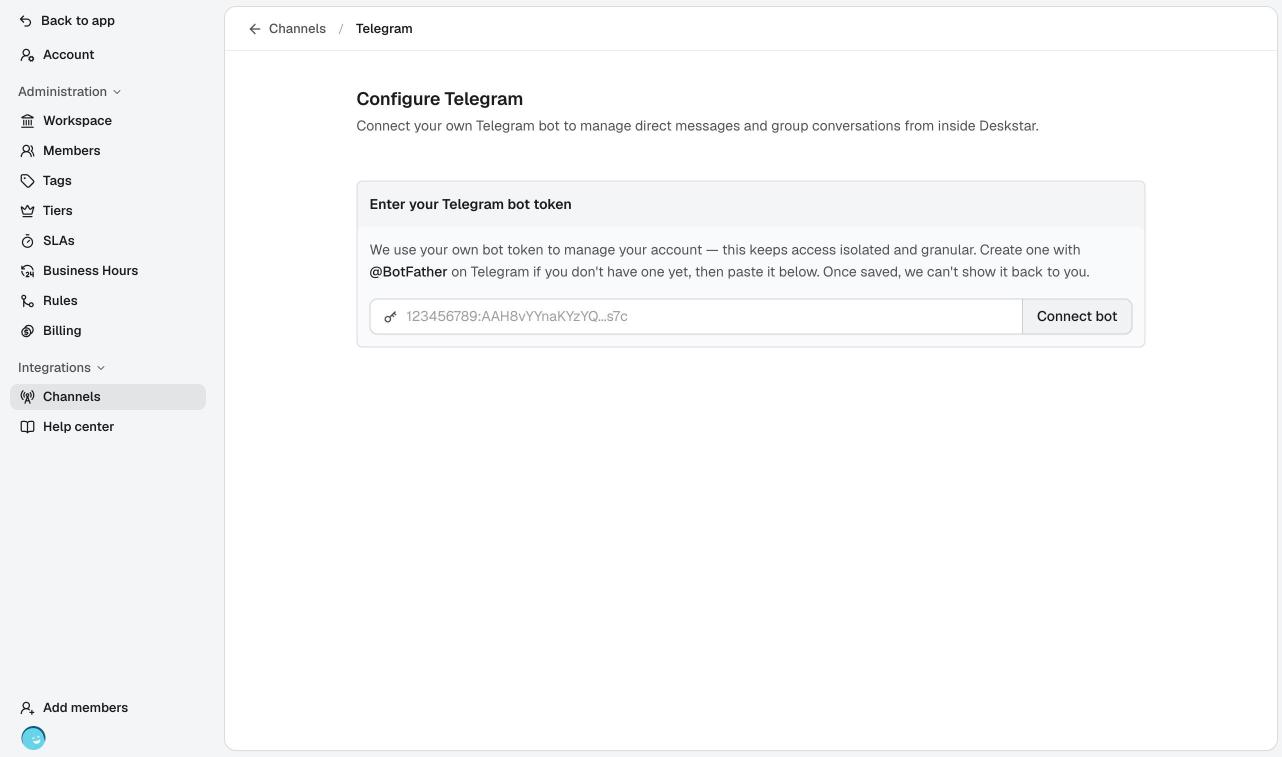
Paste the token from @BotFather. The one shown here is an example. 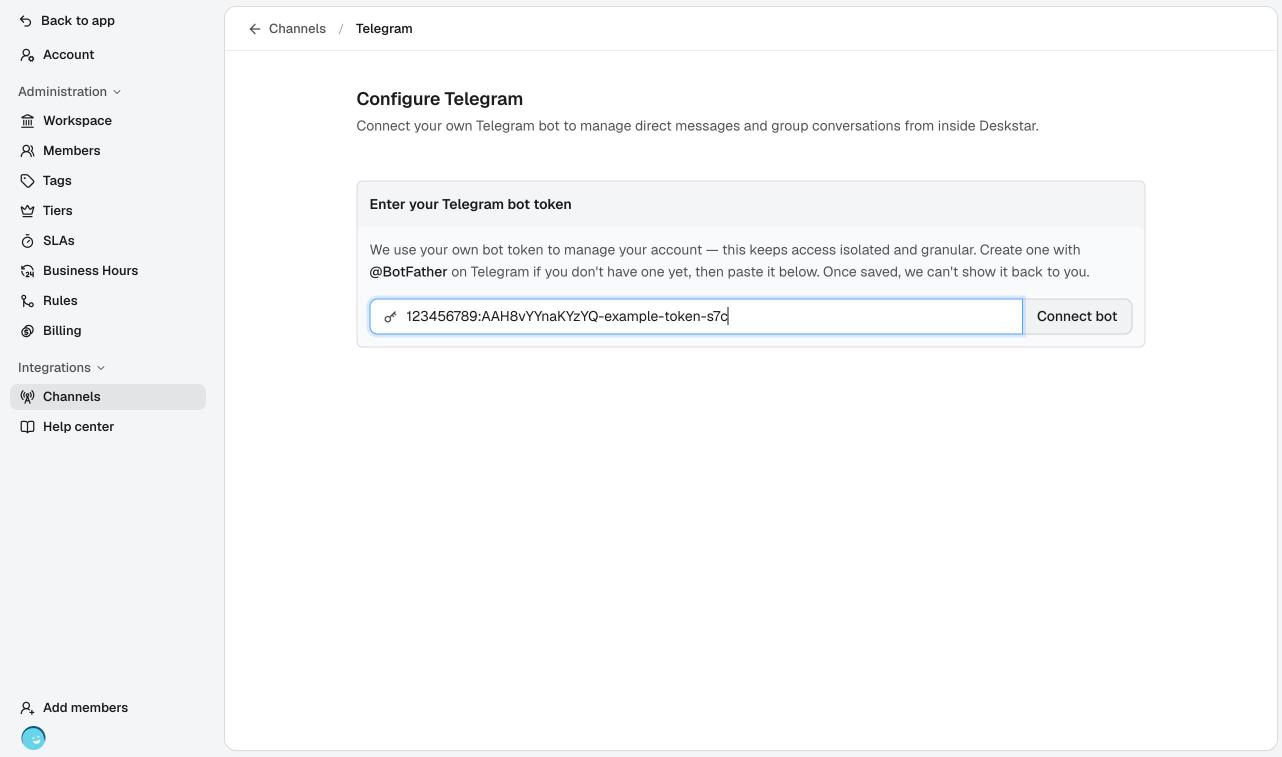
Paste the token from @BotFather. The one shown here is an example. Deskstar verifies the token with Telegram. If it is valid, the page shows Bot details with the bot's name and username.
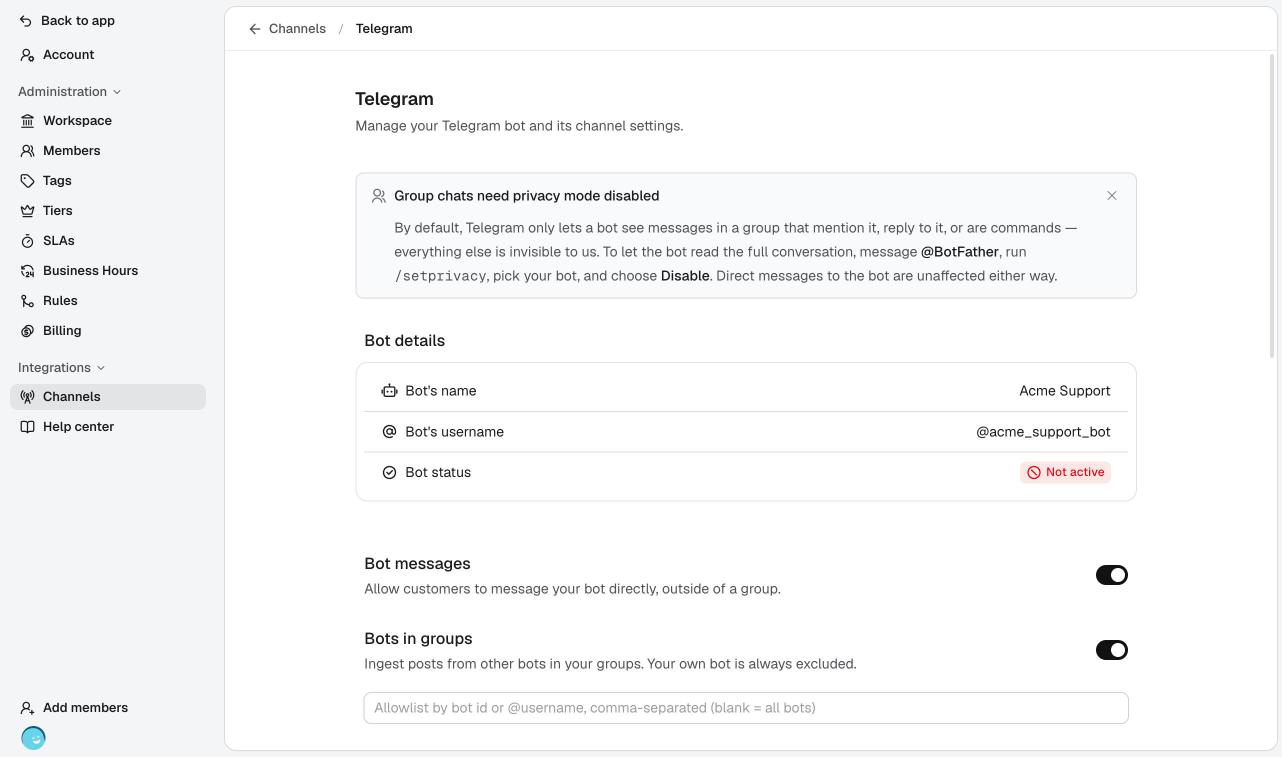
The bot is connected but not switched on yet, so its status reads Not active. Once saved, Deskstar can't show the token back to you. It is stored encrypted. If you lose it, get a new one from @BotFather and rotate the token (see below).
-
Enable the bot
Connecting the bot isn't enough on its own. Scroll to Manage channel and click Enable.
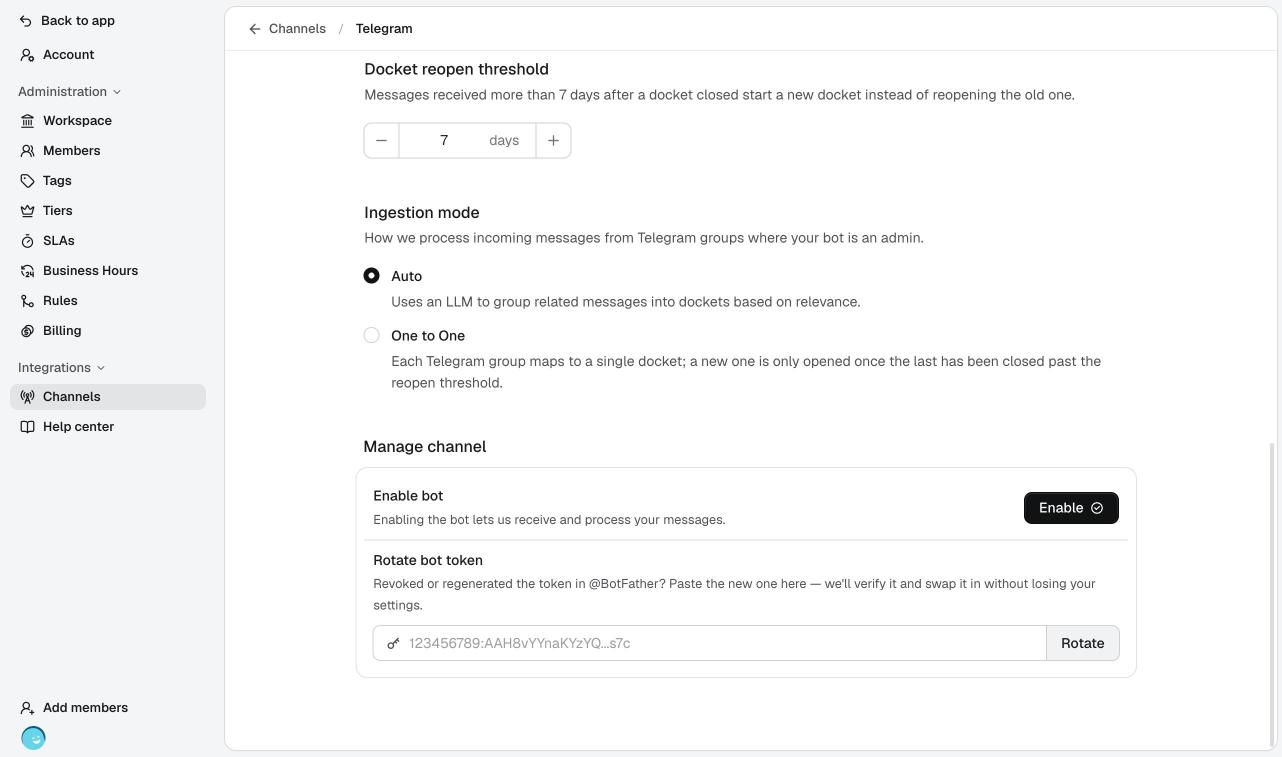
Enable bot and Rotate bot token, at the bottom of the page. Deskstar registers the webhook with Telegram. When Telegram confirms it, the status changes to Ready.
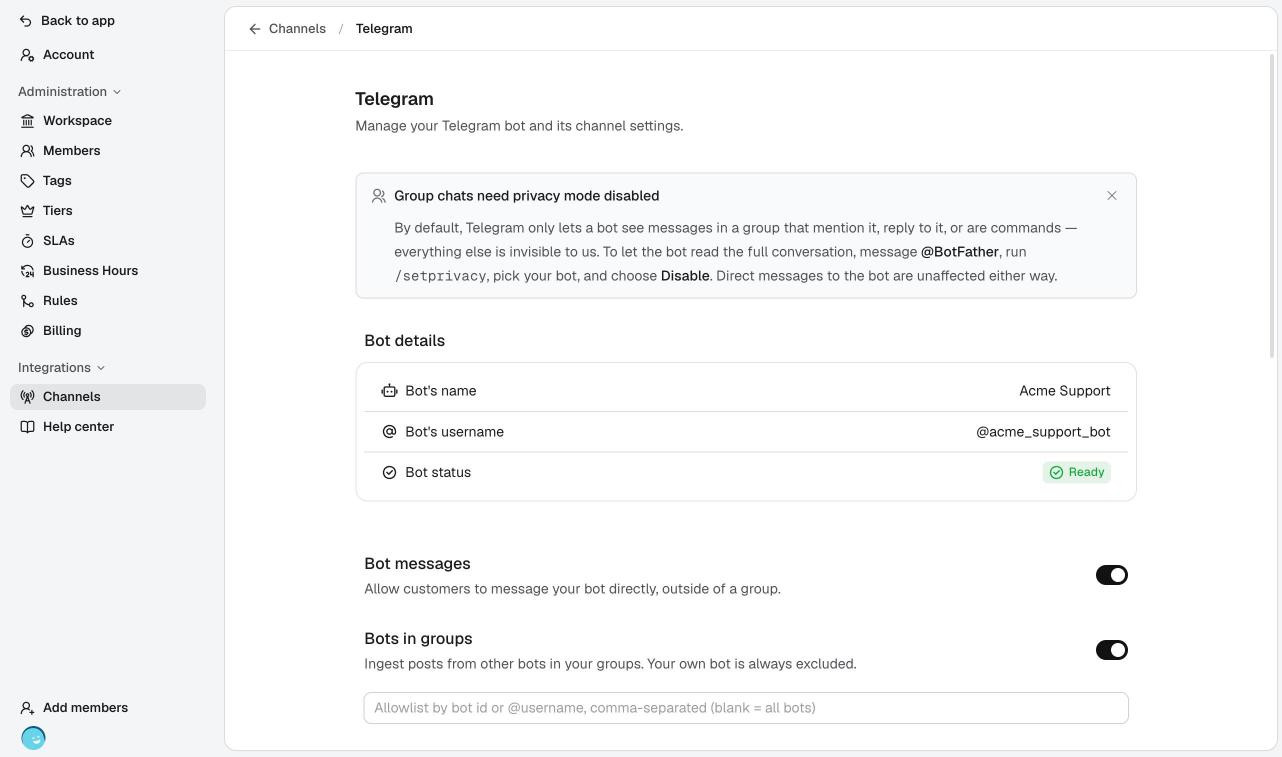
Ready means Telegram is now sending messages to your workspace. To pause the channel later, click Disable. Deskstar stops receiving messages until you enable it again.
-
Turn off privacy mode (groups only)
Skip this step if you only want direct messages.
By default, a Telegram bot in a group only sees messages that mention it, reply to it, or are commands. To let Deskstar see the whole conversation:
- Message @BotFather and send
/setprivacy. - Choose your bot.
- Choose Disable.
- Message @BotFather and send
-
Add the bot to a group (optional)
Open the group in Telegram and add your bot as a member. Make it an admin so Deskstar covers the whole conversation. The ingestion mode below applies to groups where your bot is an admin.
Direct messages to the bot work either way.
Choose how it behaves#
Everything on the Telegram page saves as you change it.
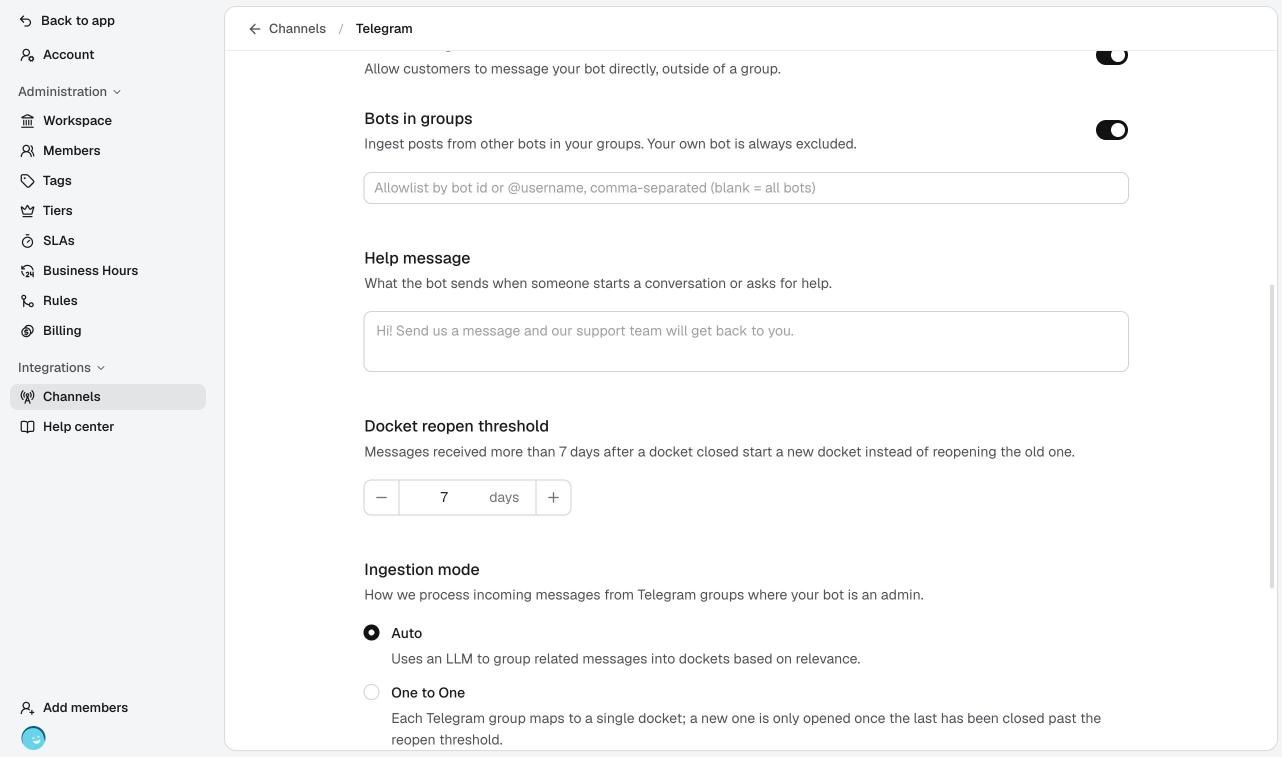
- Bot messages: lets customers message your bot directly, outside a group. When it's off, direct messages are dropped.
- Bots in groups: ingests posts from other bots in your groups, such as alerting or monitoring bots. Your own bot is always excluded. Add bot IDs or
@usernamesto the allowlist to accept only those bots; leave it blank to accept all of them. - Help message: the text your bot sends when someone starts a conversation or asks for help.
- Docket reopen threshold: a number of days from 1 to 30. A message that arrives within this window after a docket closed reopens it. A message that arrives later starts a new docket.
Ingestion mode#
This controls how messages from groups become dockets.
- Auto: Deskstar uses AI to group related messages into dockets. Best for busy shared groups with many conversations at once.
- One to One: each Telegram group maps to a single docket. A new one opens only after the last one has been closed past the reopen threshold. Best for a dedicated group for each customer.
How Auto decides where a message goes
Deskstar works through these in order and stops at the first that applies:
- Edits go to the docket of the original message.
- Replies go to the docket of the message being replied to.
- Recent sender: if the same person has an open docket in that chat from the last few minutes, the message joins it.
- Chatter: in groups, messages that aren't support requests, such as greetings, are held back briefly. If that person raises a real request soon after, the held messages are attached to it.
- Similarity: Deskstar looks for the best matching docket. A borderline match is settled by an AI check. If nothing matches, a new docket opens.
A message Deskstar can't place with confidence still becomes a docket, flagged for review, so an agent can tidy it up. Direct messages skip the chatter step.
Rotate the bot token#
Revoked or regenerated the token in @BotFather? You don't need to reconnect.
- In @BotFather send
/mybots, choose your bot, then API Token → Revoke current token. - In Deskstar, open
Settings → Channels → Telegram, paste the new token under Rotate bot token and click Rotate.
Deskstar verifies the new token and swaps it in without losing any of your settings.
Troubleshooting#
"Connect bot" shows an error
The token is wrong, incomplete or revoked. Copy it again from @BotFather and include the part before the colon.
The status says Not active
The bot isn't enabled, or Telegram refused the webhook. Click Enable. If it fails again, check that the token is still valid.
Direct messages don't show up
Bot messages is off, or the bot is disabled. Turn on Bot messages and check that the status reads Ready.
The bot only sees some group messages
Privacy mode is still on. Follow the privacy mode step above, then remove the bot from the group and add it back.
Messages from other bots are missing
Bots in groups is off, or the sender isn't on your allowlist. Turn it on and check the allowlist.
One chat creates too many dockets
Auto mode is splitting a conversation. For a group that belongs to one customer, switch to One to One.
Messages stopped after a token change
The old token was revoked. Rotate the bot token with the new one (see Rotate the bot token above).