 Deskstar
Set your Availability
Tell Deskstar when you're away so new dockets go to people who can pick them up.
Tell Deskstar when you're away, so new dockets go to people who can pick them up and customers on live chat know what to expect. Setting your status takes a few seconds, and Deskstar puts you back to Available on its own when your time is up.
What your status does#
You are always in one of three states:
- Available: you're around. You can be given new dockets automatically.
- Away: you've stepped out for a while, such as a break, a meeting or the end of the day.
- On leave: you're out for longer, such as a holiday.
Your status changes a few things:
- Automatic assignment skips you. When Deskstar hands out new dockets without anyone choosing, it only considers people who are Available. Squads work the same way: only available members pick up work.
- Live chat can show that you're away. If the workspace has live chat with Show when you're away switched on, the chat widget tells visitors the team is away when nobody who answers dockets is Available.
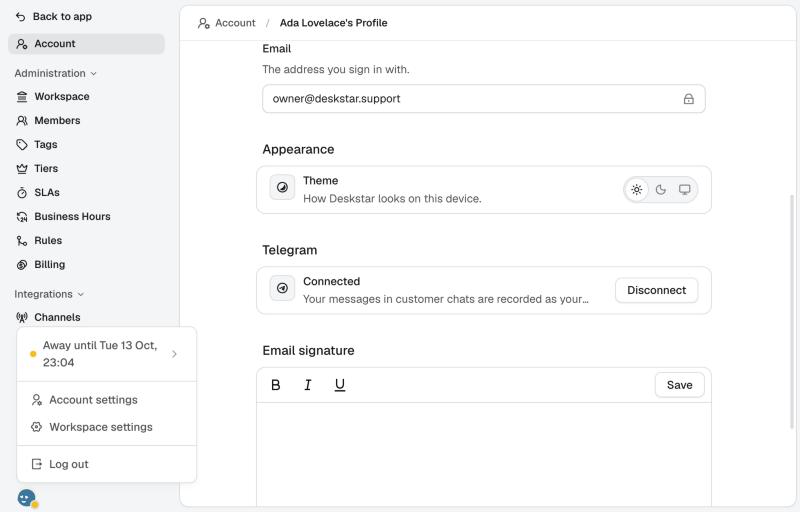
- You can see it at a glance. A small coloured dot sits on your profile picture: green for Available, yellow for Away and grey for On leave.
Dockets already assigned to you stay with you. Your status only affects who receives new ones.
Set your status#
Click your profile picture at the bottom of the left-hand sidebar. The top row of the menu shows your current status. Move your pointer over it to open the choices.
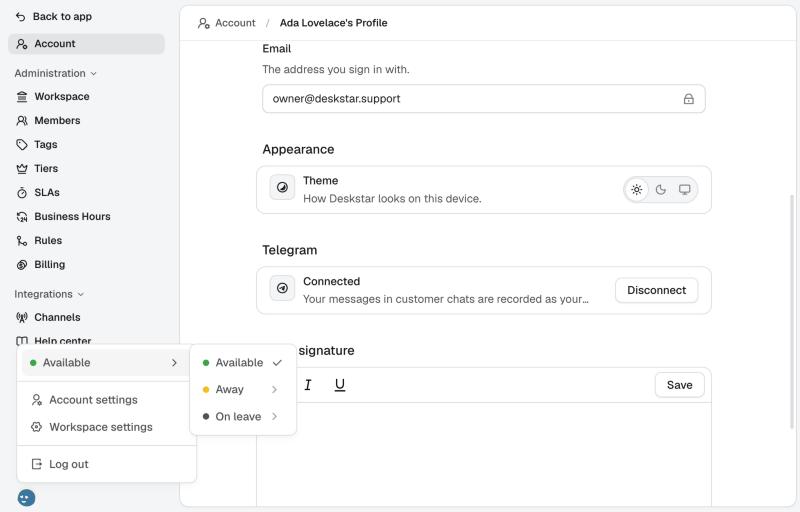
For Away and On leave, pick how long. Deskstar returns you to Available at that time.
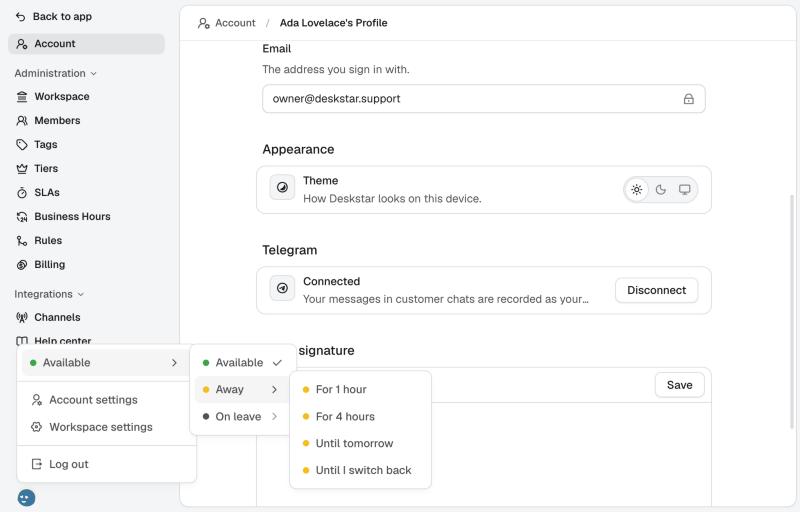
- For 1 hour and For 4 hours count from now.
- Until tomorrow returns you at 9:00 the next morning.
- Until next week, for On leave, returns you at 9:00 on the next Monday.
- Until I switch back keeps you away until you choose Available yourself.
Times of 9:00 use your own time zone, not your workspace's.
Once you're away, the menu shows when you'll be back, and the dot on your picture turns yellow.
Come back early#
Open the same menu and choose Available. You don't need to wait for the time you set.
Set someone else's status#
Admins and owners can change anyone's status from the Members page, by opening the member and using their Availability setting. This is useful when someone forgets to switch back after a long absence.