 Deskstar
Connect your Slack and Telegram Accounts
Link your Telegram account and match your Slack email so your messages in customer channels are recorded under your name.
If your team works with customers in Slack or Telegram, connect your own account so Deskstar knows which messages are yours. Without it, a reply you type in a customer channel is treated like anyone else's message. With it, the reply is recorded under your name.
This applies to everyone in your workspace, whatever your role. Viewers who follow customer conversations and join the discussion need it as much as agents do.
What connecting does#
- Your messages are recorded as yours. When you write in a customer chat or channel, Deskstar adds your message to the docket as your reply, with your name on it, instead of treating you as a customer.
- You can act from the chat. In Slack, your reactions can pull a thread in as a docket or mark it resolved. See below.
- In Telegram, chatting never opens a docket. Your messages join the conversation but don't start a new docket of their own.
Connect Telegram#
Telegram needs a one-time link between your Deskstar account and your Telegram account.
-
Open your account settings
Click your profile picture at the bottom of the left-hand sidebar and choose Account settings. Scroll to the Telegram section and click Connect.
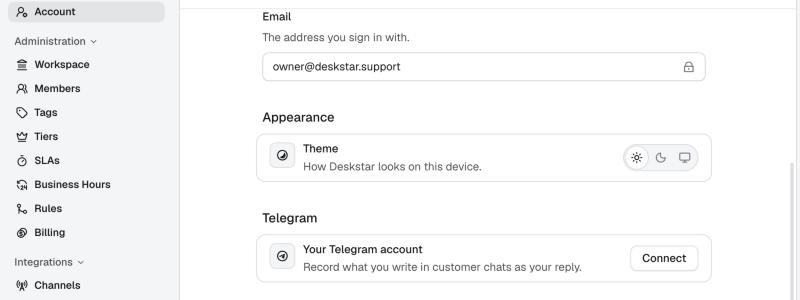
The Telegram section on your Account page. -
Press Start in Telegram
The button changes to Open Telegram. Click it. Telegram opens a chat with your workspace's bot. Press Start there.
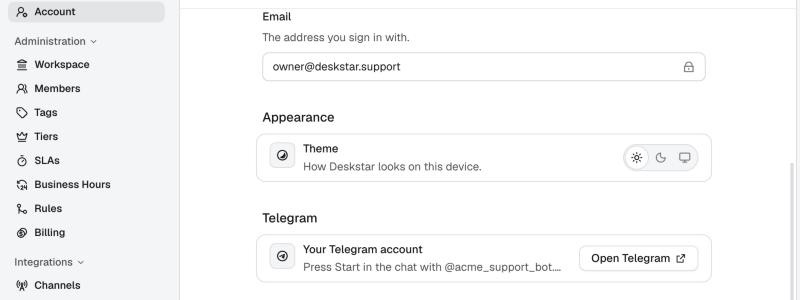
The link works for 15 minutes. The link is valid for 15 minutes. If it expires, click Connect again for a new one.
-
Check it worked
Back in Deskstar, the section now says Connected.
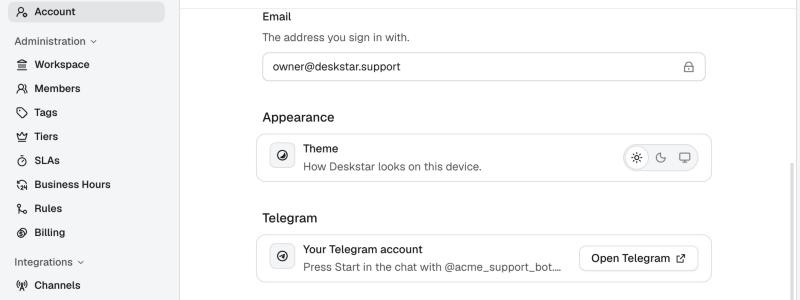
Your messages in customer chats are recorded as your replies. From now on, what you write in customer chats is recorded as your reply.
To unlink, click Disconnect in the same place.
Connect Slack#
There's nothing to click for Slack. Deskstar recognises you by your email address.
When you write or react in a customer channel, Deskstar looks at your Slack profile's email address. If it matches the email you sign in to Deskstar with, you're recognised as a member of the team. Anyone else in the channel is treated as a customer.
To make sure it works:
- In Slack, open your profile and check the email address shown there.
- In Deskstar, open Account settings and compare it with your Email.
- If they differ, change your Slack email to match. Deskstar's sign-in email can't be changed from the account page.
What you can do from Slack#
Once you're recognised, in channels the Deskstar app has joined:
- Pull a thread in. In channels set to Emoji trigger, react to the first message of a thread with the channel's emoji,
eyesby default, and Deskstar pulls the whole thread in as a docket. - Resolve a docket. React to a message in the thread with the resolve emoji,
white_check_markby default. Remove the reaction to reopen the docket. - Reply in the thread. What you write is added to the docket under your name.
Ask your admin which emoji each channel uses. It's set per channel.
Troubleshooting#
My Slack reactions do nothing
Check the channel is in Emoji trigger mode and that you're using the emoji set for it. Then check that your Slack email matches your Deskstar email. A reaction from someone Deskstar doesn't recognise as a teammate is ignored.
My replies in Slack show up as a customer's
Deskstar didn't match your Slack email to your Deskstar account. Make the two emails the same, then write a new message.
The Telegram link expired, or I pressed Start but nothing changed
Links last 15 minutes. Go back to Account settings and click Connect again, then press Start in the new chat. If the section still doesn't say Connected, refresh the page.
I can't see a Telegram section
Your workspace's Telegram bot isn't switched on. An admin needs to enable it under Settings → Channels → Telegram.